THE CREATOR’S GUIDE

How do I make an Outstanding Tiny Desk AI video?

Upload a portrait or group photo, choose your cast and quality, and generate a vertical MP4 about 15 seconds long with the preset soundtrack included. Preview and download it here—no CapCut or manual editing needed.

Packs start at USD 9.99 for 45 credits; each video's quote is shown before you generate. See credit packs

Video length: about 15 seconds · 9:16 MP4 · Sound included

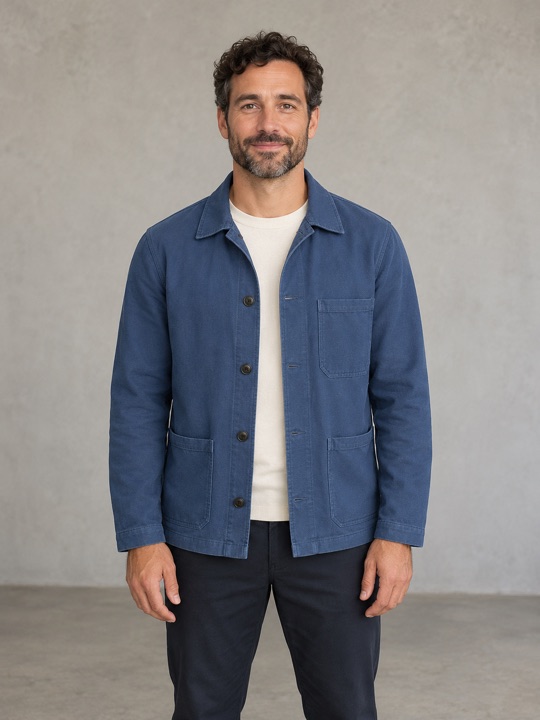
01 / THE PHOTOOriginal AI portrait of a fictional adult man in a blue jacket, used as the lead-singer input for this exampleOriginal AI portrait
02 / THE PERFORMANCE15 seconds · 720p · sound
A real 720p AI result made from this fictional adult portrait as the lead. Other musicians are AI-generated. Faces, gestures and lip-sync can vary in each result.
01 / FROM PHOTO TO PERFORMANCE

Make your video in four steps

Use the studio on this page: upload a lead-singer portrait or one group photo, sign in, choose a quality and check the credit quote. Start generation, then open My videos to follow progress, preview the performance and download the MP4. The preset scene and soundtrack are already included.

  1. Prepare the photos

    Pick a front-facing, evenly lit photo with visible eyes and no heavy filter. Use JPG or PNG, up to 10 MB each. Everyone shown must be an adult who agreed to appear.

  2. Cast the performance

    In the studio below, choose individual photos or one group photo. Add your cast and check the thumbnails before continuing. Sign in to create; the sign-in tab opens separately so your selected photos stay here.

  3. Check quality and credits

    Choose 480p, 720p or native 1080p, then read the current credit quote. Higher resolution needs more credits. Confirm photo permissions and start only when the selected quality and price are right for you.

  4. Review, download, share

    Follow progress in My videos. Once ready, play the full clip and check faces, hands, role placement and sound before downloading the MP4. Make it clear the video is AI-generated when you share it.

02 / UNDERSTAND THE FORMAT

What is Tiny Desk AI?

Tiny Desk AI describes an AI-made desk-concert video: a singer, a small band and an intimate room, with people from your photos in the cast. The appeal is the unexpected lineup—your friend on lead vocals, a coworker on keys, or your whole group taking the stage.

On this site, the preset is inspired by the Outstanding desk-concert meme. Its performance setup and reference soundtrack are already chosen. You control the photos, cast and output quality. A new AI performance is generated for each request, so it can differ from the reference and from previous takes.

03 / PICK THE PEOPLE

One person can start the whole band.

Choose the input that gives each face enough detail. You do not need a photo of anyone actually singing or playing an instrument.

Give each person a part

Start with the lead singer’s portrait. Add separate photos for keys, saxophone and two backing singers if you want specific people in those parts. Any roles you leave empty are filled by fictional musicians.

Best when you want to choose who plays each role.

Make a Tiny Desk video from one group photo

Use one clear group photo with one to five consenting adults. People are assigned from left to right: lead, keys, sax, then the two backing singers. Keep faces separated and large enough to recognize.

Best when you already have a well-lit group photo.

PHOTO QUALITY GUIDE

Outstanding Tiny Desk AI: which photos to use

Your photo is the starting point for the whole performance. Give Outstanding Tiny Desk AI a clear view of each face, with natural light and enough room around the head and shoulders. You do not need a studio portrait: a straightforward phone photo is a useful place to start.

Fictional adult in a blue jacket, facing the camera against a simple wall

Clear face, natural light

Choose a sharp, forward-facing portrait with both eyes visible. Even lighting makes facial details easier to see.

Fictional adult in a blue jacket, facing the camera against a simple wall

Face lost in shadow

Skip dim rooms and strong backlighting. If you cannot see the face clearly, pick another photo.

Fictional adult in a blue jacket, facing the camera against a simple wall

Heavy filters or blur

Beauty effects, color overlays and motion blur can hide the features you want the video to use.

Fictional adult in a blue jacket, facing the camera against a simple wall

Face too small in frame

A distant face is harder to recognize. Choose a closer original instead of enlarging a tiny face.

Photo selection examples using an AI-generated portrait.

What works well

  • Start with an original JPG or PNG under 10 MB. Check the image at its normal size before uploading it to Outstanding Tiny Desk AI.
  • Keep the face unobstructed and include the shoulders or upper body. A simple background helps you judge whether the person is clearly visible.
  • For a group, choose one to five consenting adults with separate, recognizable faces. For individual casting, use one clear person per role.

What to skip

  • Avoid sunglasses, hands across the face, cropped foreheads and overlapping heads. These leave less useful information for the generated performance.
  • Do not upload a screenshot full of stickers, text or interface controls when you have the original photo available.
  • Do not expect a photo to lock every detail. Outstanding Tiny Desk AI may change clothing, facial features and body proportions during motion.

A quick check before uploading

Open your chosen image and look at the eyes, mouth and outline of the face. Are those details easy to distinguish without guessing? Compare it with the clear example above. If several photos are available, favor the one with more even lighting over a dramatic pose. For friends photographed separately, choose pictures with similar framing so you can compare their clarity easily. Keep an untouched copy of each original, and replace any image that looks soft or heavily compressed. A few minutes spent choosing photos gives your Outstanding Tiny Desk AI session a clearer starting point, although it cannot remove the uncertainty that comes with AI video generation.

THE STUDIO

Ready for your own take?

Pick your cast and quality. You’ll see the credit total before creating your 15-second video.

1

Cast your band

Lead singer

Your main character

Keys

Optional band member

Saxophone

Optional band member

Backing vocal 1

Optional band member

Backing vocal 2

Optional band member

The lead is required. Add anyone else you want; fictional musicians fill the empty parts.JPG or PNG · up to 10 MB each

2

Choose your quality

15 seconds9:16 verticalSound included
3

Make your video

480p · 15 s · 9:16—

Checking studio availability…

Includes the reference soundtrack. AI creates a new performance; exact gestures and lip-sync can vary.

BEFORE YOUR FIRST TAKE

Tiny Desk AI questions, answered.

Do I need all five photos?

No. In individual mode, only the lead singer is required. Add photos for any other roles you want to cast; fictional musicians fill the rest. Group mode accepts one clear photo with one to five adults.

Can I choose another song or upload my own performance?

This studio uses one preset performance and its reference soundtrack. It currently accepts cast photos and quality choices, with no custom song or performance-video upload. Check the included audio against your permissions and your sharing platform’s rules.

Is the example above a real generated result?

Yes. The 720p clip was made from the fictional adult portrait shown beside it. The reference clips linked on the homepage come from external creators and are labeled separately. Neither guarantees the exact result of your own request.

Is Tiny Desk AI free to use?

You can read this guide, watch the example and prepare your photos without buying credits. Generating a personalized video requires credits. Select a quality in the studio to see its current cost, and check Pricing for the available one-time packs.

What happens if a generation fails?

Credits charged for a confirmed failed generation are returned to your account. My videos shows both task and credit-return status. A completed video can still contain AI imperfections; a new take is a new generation with its own cost.

Is this an official Tiny Desk or NPR service?

No. This is an independent AI creation tool. Tiny Desk and Outstanding describe the creative inspiration; no affiliation or endorsement by NPR, the original artists or other featured people is implied.

How long does it take to generate the video?

Generation is not instant. Completion time varies with the queue and selected quality, and there is no guaranteed finish time. Open My videos to follow processing, soundtrack preparation and saving. If you leave, return there to check the existing request before starting another.

Can I make a Tiny Desk AI video on my phone?

Yes. Open this page in your phone’s browser, choose a JPG or PNG from your device, sign in and check the quote before generating. You can preview and download the finished MP4 from My videos. If a social app’s built-in browser blocks sign-in or downloads, open the page in your main browser.

Will my downloaded video have a watermark?

We do not add a site logo or watermark when saving your MP4. AI can still produce unintended text or visual artifacts, so play the finished video in My videos and check it before downloading or sharing.

Where can I find an Outstanding Tiny Desk AI template?

The studio on this page includes the Outstanding-inspired preset: a desk-concert scene, band roles and reference soundtrack. Add your photos and choose a quality to create a new performance. You do not need to download a separate template or edit the video yourself.

Can I choose who sings and who plays the saxophone?

Yes. Use individual-photo mode to put each person’s portrait in the lead, keys, saxophone or backing-vocal slot. With one group photo, people are assigned from left to right: lead, keys, saxophone, then the two backing singers. Choose individual photos when you need a different role order.

You have the photos. Give them a stage.

Pick your cast, check the quote, and make your first take.

Make my video