
How to Make the Outstanding Tiny Desk AI Video
A step-by-step guide to choosing photos, casting five roles, checking credits and reviewing your 15-second Outstanding Tiny Desk AI concert.
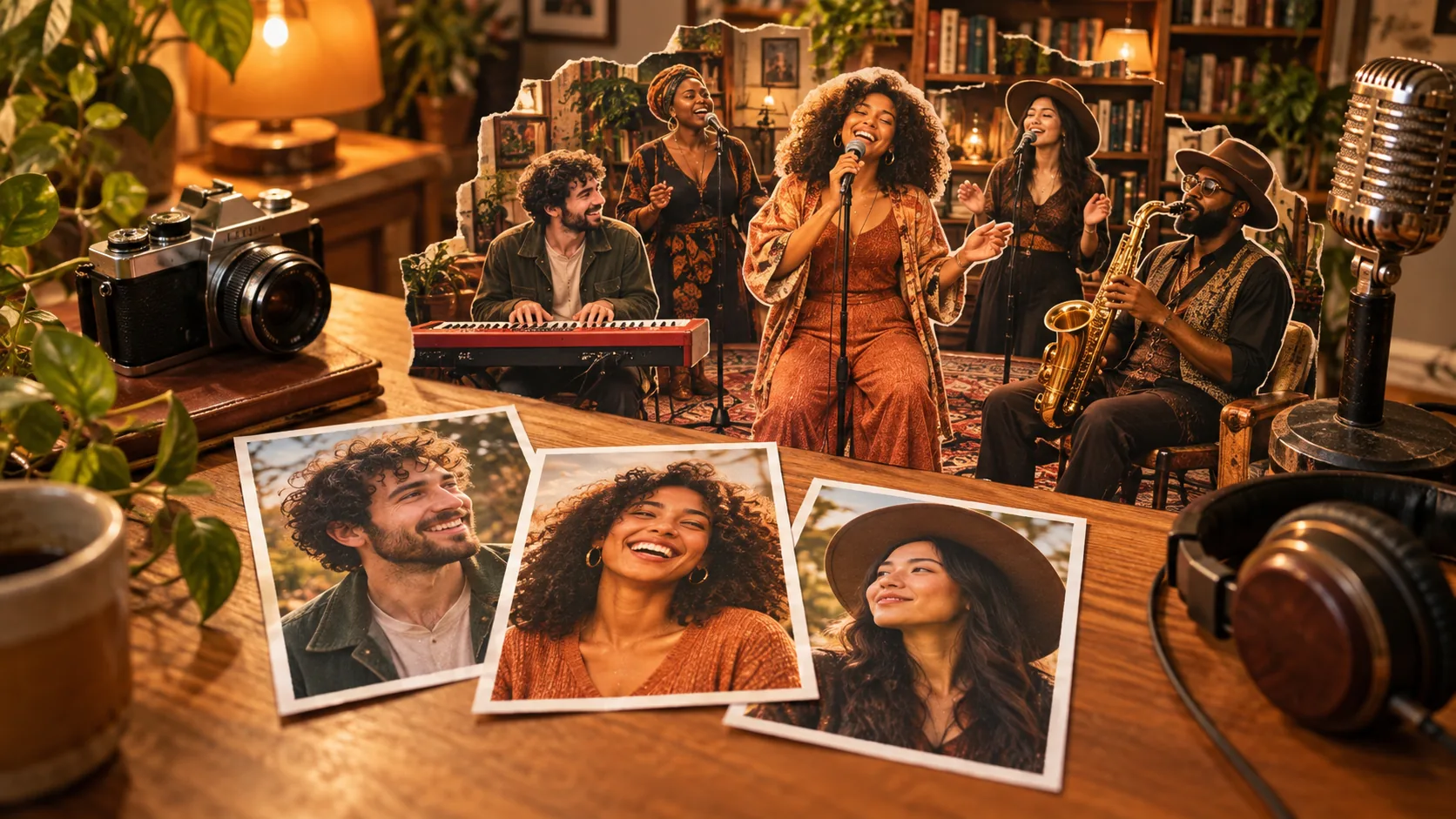
To make an Outstanding Tiny Desk AI video, choose a clear photo for the lead singer, add optional band members, select a resolution and submit the generation after checking its credit cost. This generator makes a 15-second vertical MP4 with the reference soundtrack. You do not need to write a production prompt or assemble five separate people before starting.
The workflow below describes the current controls in the Outstanding Tiny Desk video generator. It was prepared with AI assistance and checked against the editor and product configuration. The cover is concept artwork; the product example on the homepage is labeled separately. A sample demonstrates one result, not a promise that every face or movement will match it.
1. Decide who should be in the band
Start with the person the viewer should notice first. In individual-photo mode, that person belongs in the lead-singer slot. The four optional roles are keys, saxophone and two backing singers. Empty supporting roles are filled with fictional musicians, so a single portrait is enough to try a solo-cast idea.
For a first attempt, one recognizable singer is often easier to assess than five new identities at once. You can check whether the face stays convincing through different shots before preparing a larger cast. A second generation is a new paid job; it is not a free revision of the first.
If your idea depends on a particular friend playing saxophone, use individual photos. If everyone is already in one clear photograph and exact casting matters less, group mode is convenient. The template and role guide explains the mapping in more detail.
2. Prepare photos that give the model useful detail
Choose one clearly visible person per individual portrait. Even lighting, a front-facing or slightly turned face, and a visible upper body are good starting points. Keep enough room around the head that hair, ears and the outline of the face are not cut off. A sharp everyday photograph can be more useful than a heavily filtered profile picture.
Avoid tiny faces taken from a crowd, strong blur, sunglasses covering the eyes, and hands crossing the face. Two people in one individual portrait create an unnecessary identification problem. Cropping can help isolate a person, but enlarging a tiny face does not recreate missing detail.
The editor accepts JPG or PNG files up to 10 MB each. Convert unsupported formats before uploading. Use photos you own or have permission to use, and confirm that the people pictured agree to the intended edit and sharing. These steps also make reviewing the final result more straightforward: you have a clear reference for each identity.
3. Put each photo in its intended role
In individual mode, click a face position on the casting board to choose its photo. The board is a role selector, not a live preview of the finished animation. Its circular crop shows which image is assigned; it does not guarantee where that face will appear in every generated frame.
Check the selected-role control below the board before replacing or removing a photo. You can use that control to choose another role, change its picture or remove an optional cast member. If your photos are on a phone, the phone-upload action applies to the currently selected role. You will need to sign in to use the transfer flow.
In group mode, use one photograph with visible, separated faces. The template describes the intended left-to-right order as lead, keys, saxophone and the two backing singers. That instruction is a target for the model, not a reliable face-recognition guarantee. When the order is important, return to individual mode and assign separate portraits.
4. Select quality and review the price
The available output settings are 480p, 720p and 1080p. All make the same nominal 15-second vertical format. A larger resolution does not automatically improve identity, instrument handling or lip-sync, so do not treat the highest setting as a guarantee of a better interpretation.
The Starter pack is US$8.98 for 45 credits, purchased once rather than as a subscription. The amount required for a video depends on the quality selected. Read the live quote beside the controls and compare it with your balance before submitting. The pricing page lists the available packs and current generation estimates.
A useful planning habit is to reserve credits for a second attempt if the idea matters to you. Choose that budget before generating, rather than assuming an imperfect creative result will be free to replace. If a quote changes before submission, review the updated amount instead of treating the earlier display as a locked price.
5. Submit once and follow the task
Review the photos, confirm the required permission statement and start the generation. The service deducts credits when the job enters processing. Uploading a photo alone does not create a finished video. If the editor asks you to sign in or obtain more credits, complete that step and check the settings again before submitting.
Open My videos to follow progress. You can return to that list after leaving the homepage. A job that is still processing is not necessarily a failed job. Avoid repeatedly starting another generation just because the first one has not finished yet; each submitted job can consume credits.
When a failure is confirmed, the credits charged for that generation are returned to the account. That is different from a cash refund, which follows the refund policy. If you need help, report the affected job rather than sharing private sign-in links or account credentials.
6. Watch the whole result before sharing
Inspect the singer in close-ups and the other musicians when the camera changes. Look for a face that drifts, fingers that merge with an instrument, background lettering, or a role that has inherited the wrong identity. Listen to the full soundtrack rather than judging only the opening frame.
Download the completed MP4 from My videos when you are satisfied. The included soundtrack does not transfer music rights to you. Check the rules and permissions for your intended use, and describe the clip as an AI creation instead of presenting it as a real concert appearance.
If the cast feels unclear, simplify the next attempt: improve one portrait, reduce the number of uploaded people, or move the most recognizable person to the singer role. For a new concept, browse 10 casting and caption ideas. When your photos are ready, return to the generator and cast your band.